
This guide walks you through your Beecart seller admin, one screen at a time. The numbers on each picture match the numbered steps, so you can follow along with the admin open next to it. Tap any picture to see it full size. The pictures come from our demo shop, Urban Hive.
1. Add a product category
Categories are the shelves of your shop, like “Sarees”, “Kurtis” or “Tops & Tees”. Customers browse by them, so create a few before you add products.
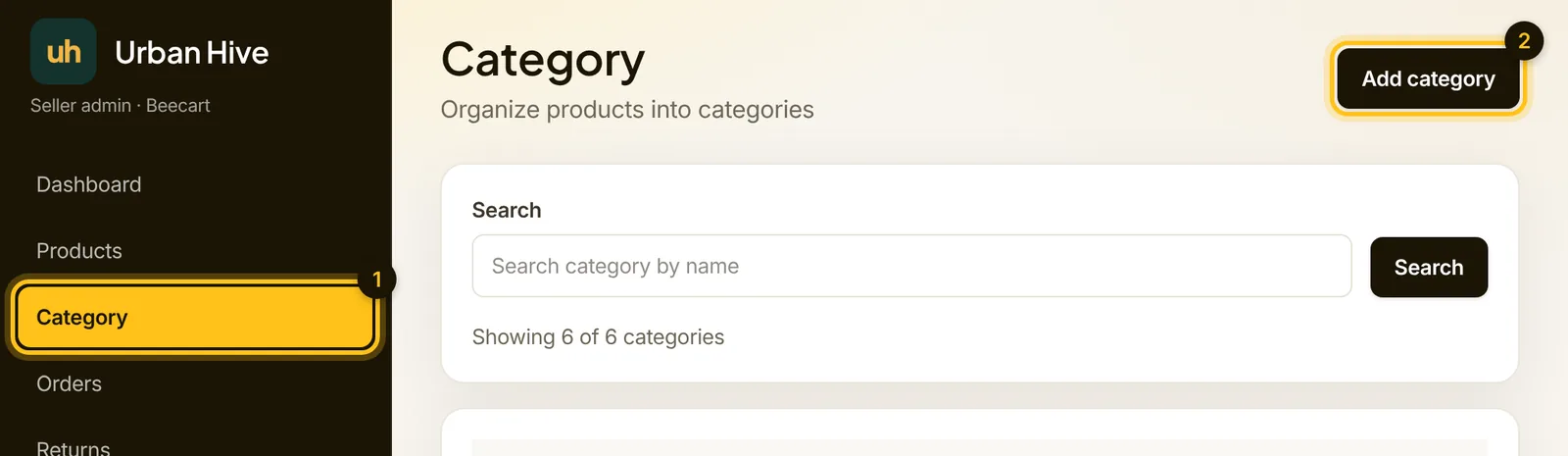
- In the menu, open Category.
- Click Add category.
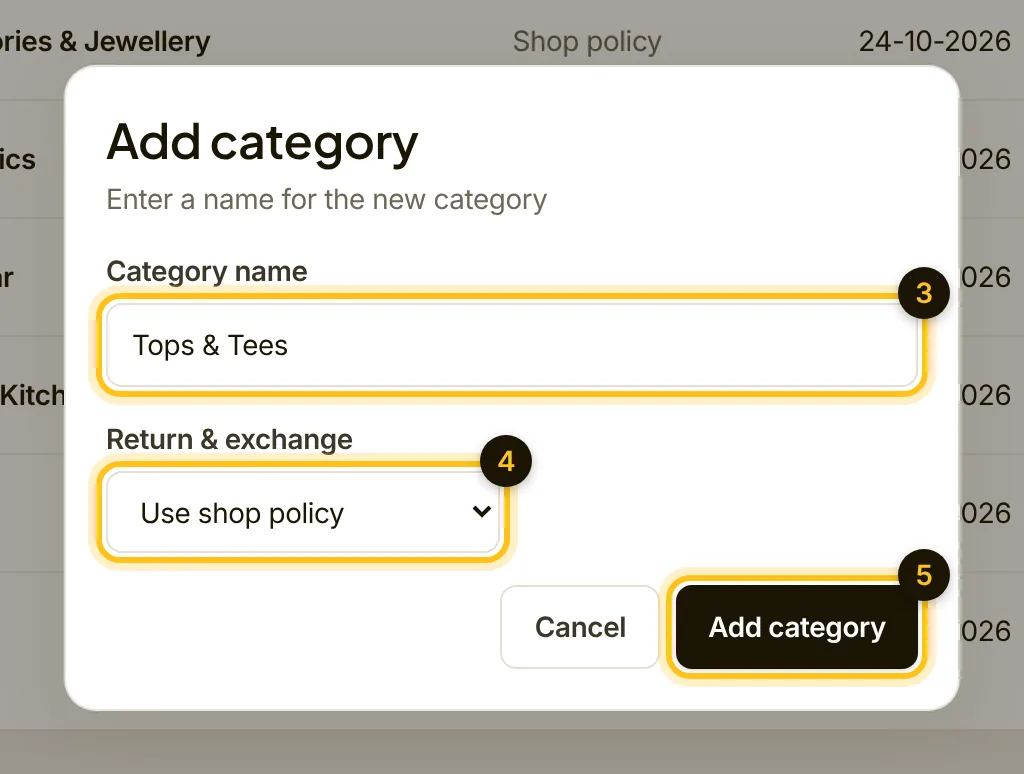
- Type the Category name.
- Leave Return & exchange on “Use shop policy”. Change it only if this category needs a different rule, for example “No returns” for innerwear.
- Click Add category.
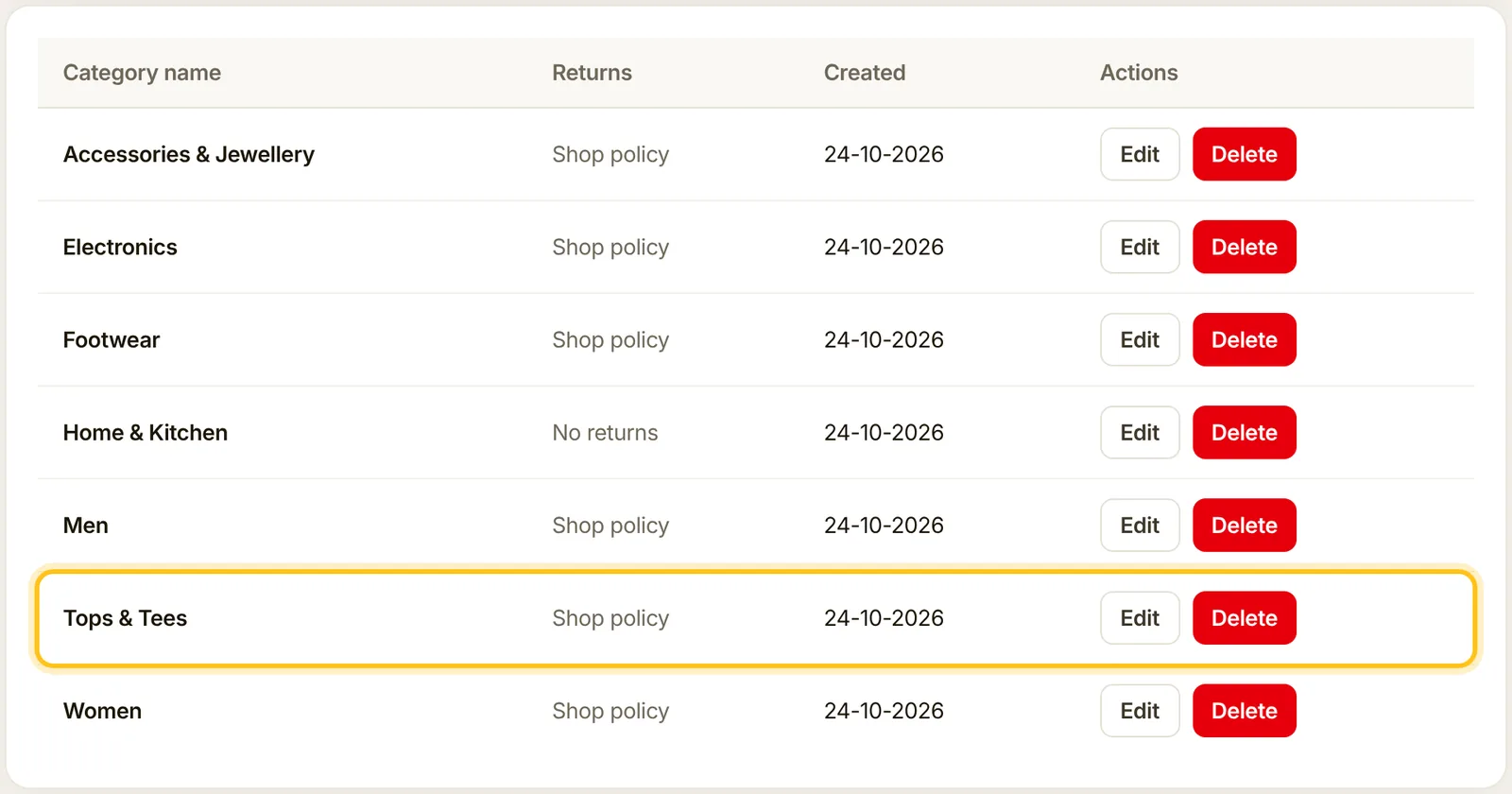
✓ Done when your new category shows in the list. Tip: add 3 to 5 categories now.
2. Add a product
A good product has a clear photo, a short description and the right price. You can always edit it later.
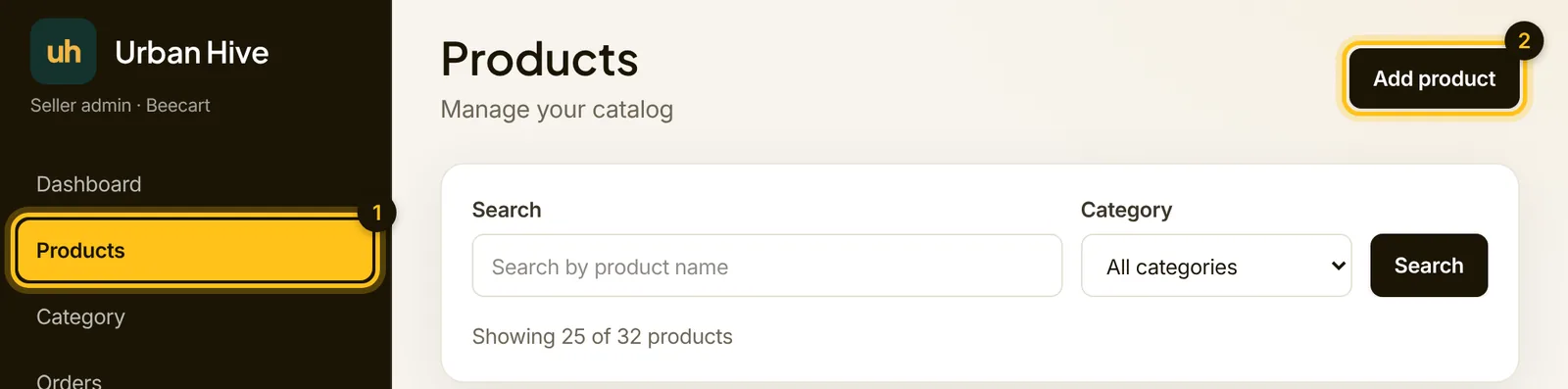
- In the menu, open Products.
- Click Add product.
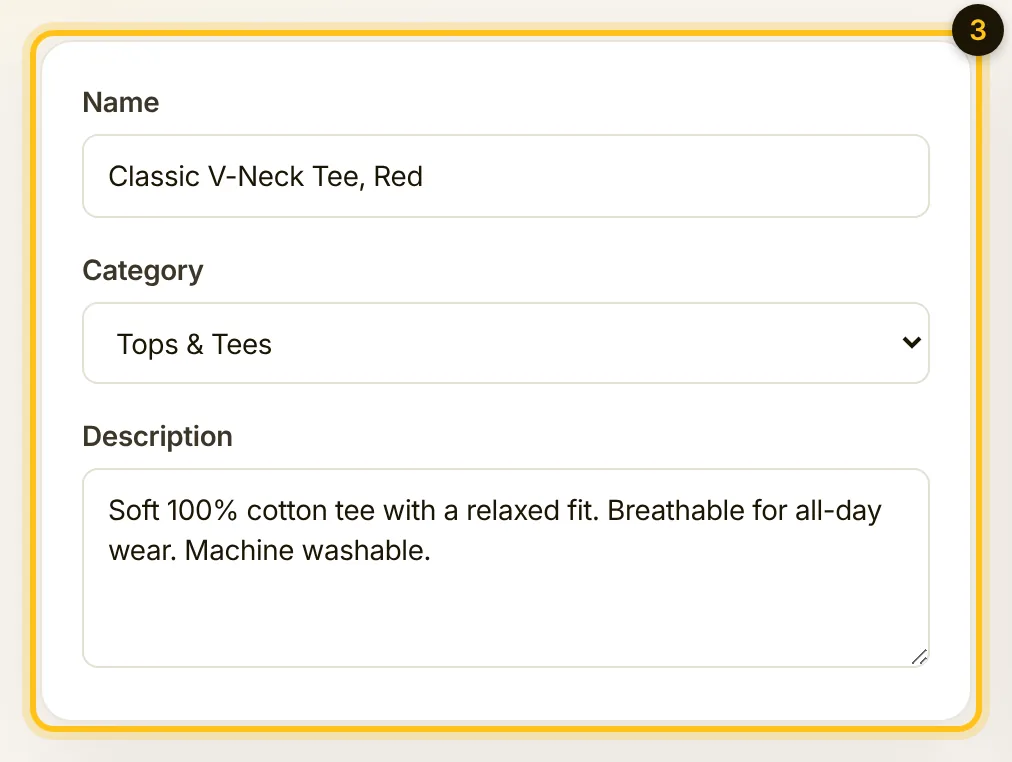
- Fill in the Name, pick the Category and write a short Description: fabric, fit, size advice, care. Two or three lines is enough.
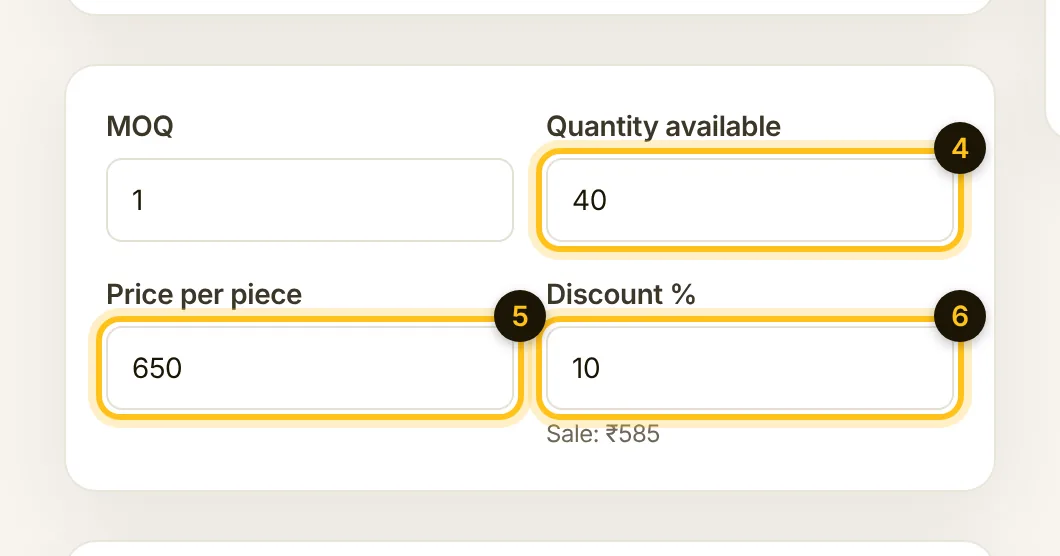
- Quantity available: how many you have in stock. At 0 the product stays listed as out of stock.
- Price per piece: your selling price, in rupees.
- Discount %: optional. Beecart shows the sale price for you (here ₹650 less 10% is ₹585). Leave it at 0 for no discount.
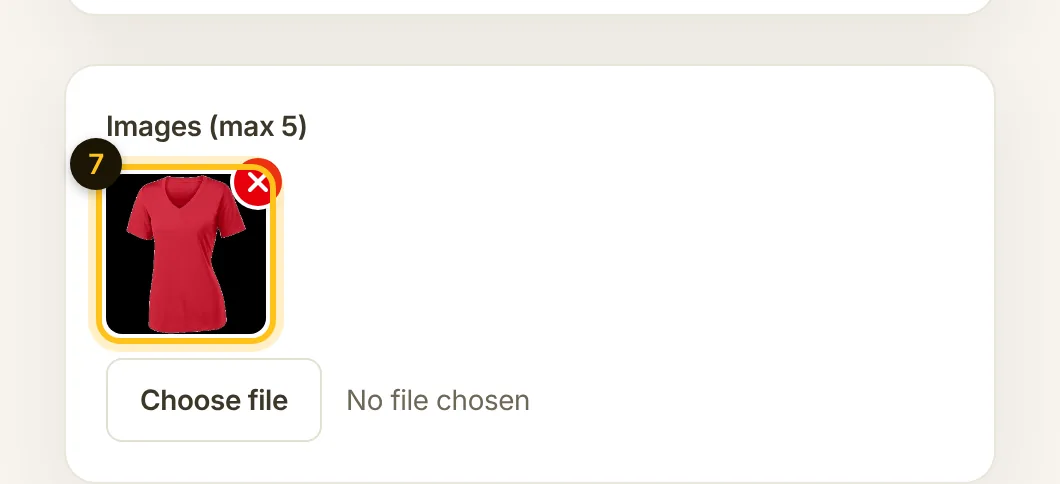
- Under Images, click Choose file and add up to 5 photos. The first one is the cover. Photos are made smaller automatically, so phone photos are fine.
Optional: sizes and colours
Skip this if the product comes in one size. Otherwise:
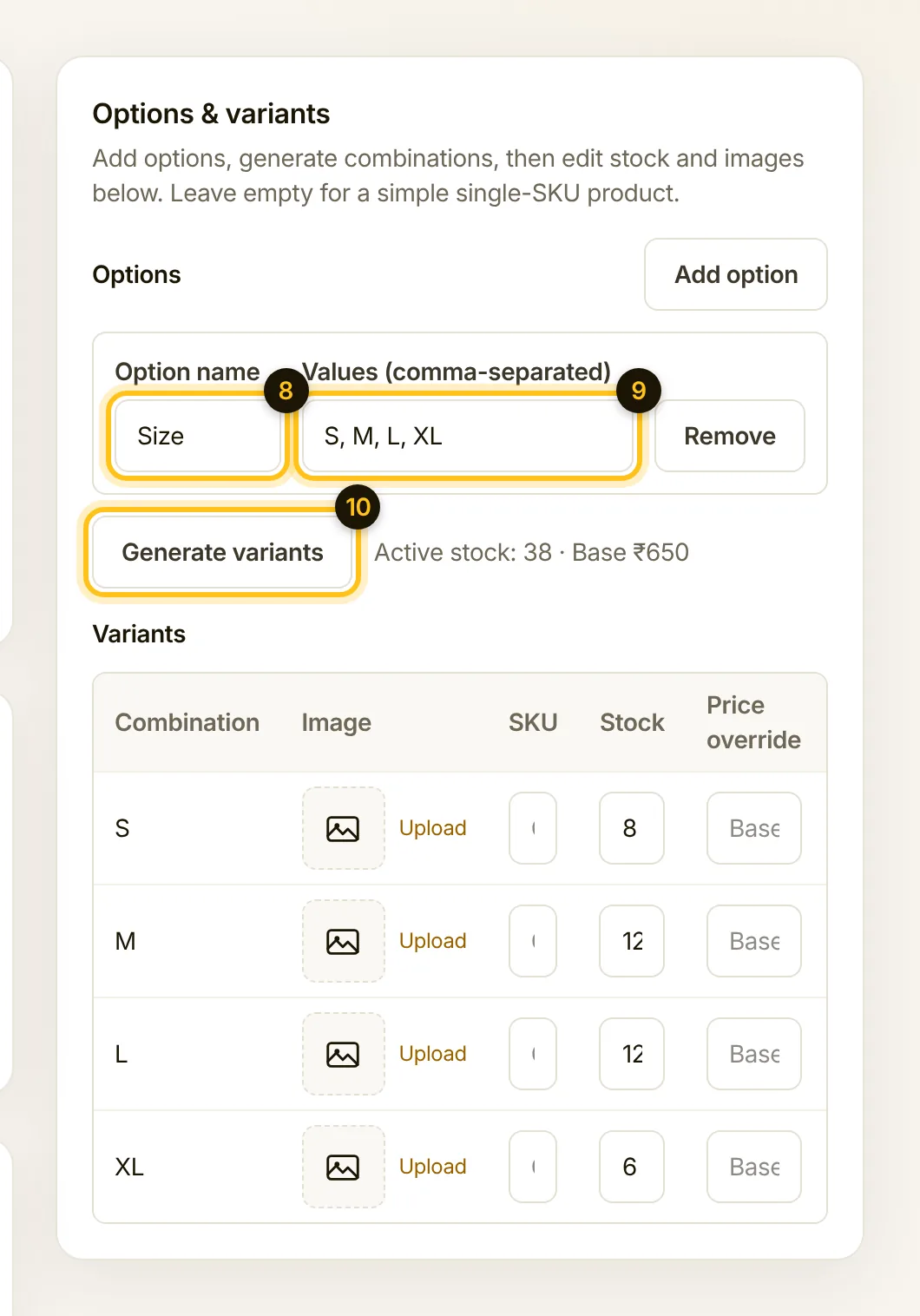
- Under Options & variants, click Add option and type the option name, like Size or Colour.
- Type the values with commas between them:
S, M, L, XL. - Click Generate variants, then enter the Stock for each size. You can also add a photo or a different price for one size.
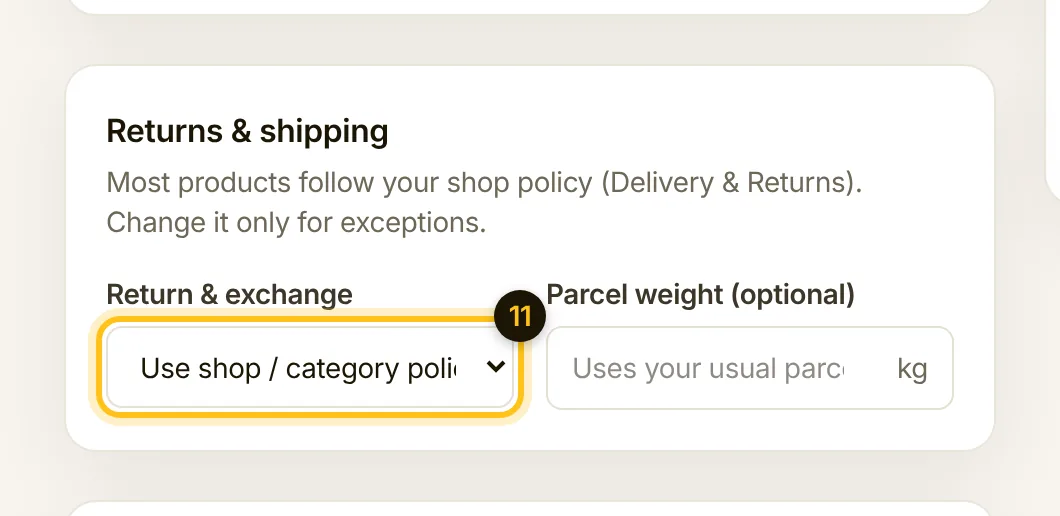
- Returns & shipping: leave this on “Use shop / category policy” unless this one product is different, for example a final-sale item.
- Click Save product at the top.
✓ Done when the product shows in your list with its photo and price. Open your shop link to see it as customers do.

3. Set where you deliver and what it costs
Open Delivery & Returns in the menu. What you set here shows on every product page and at checkout, so customers know the cost and the date before they order.
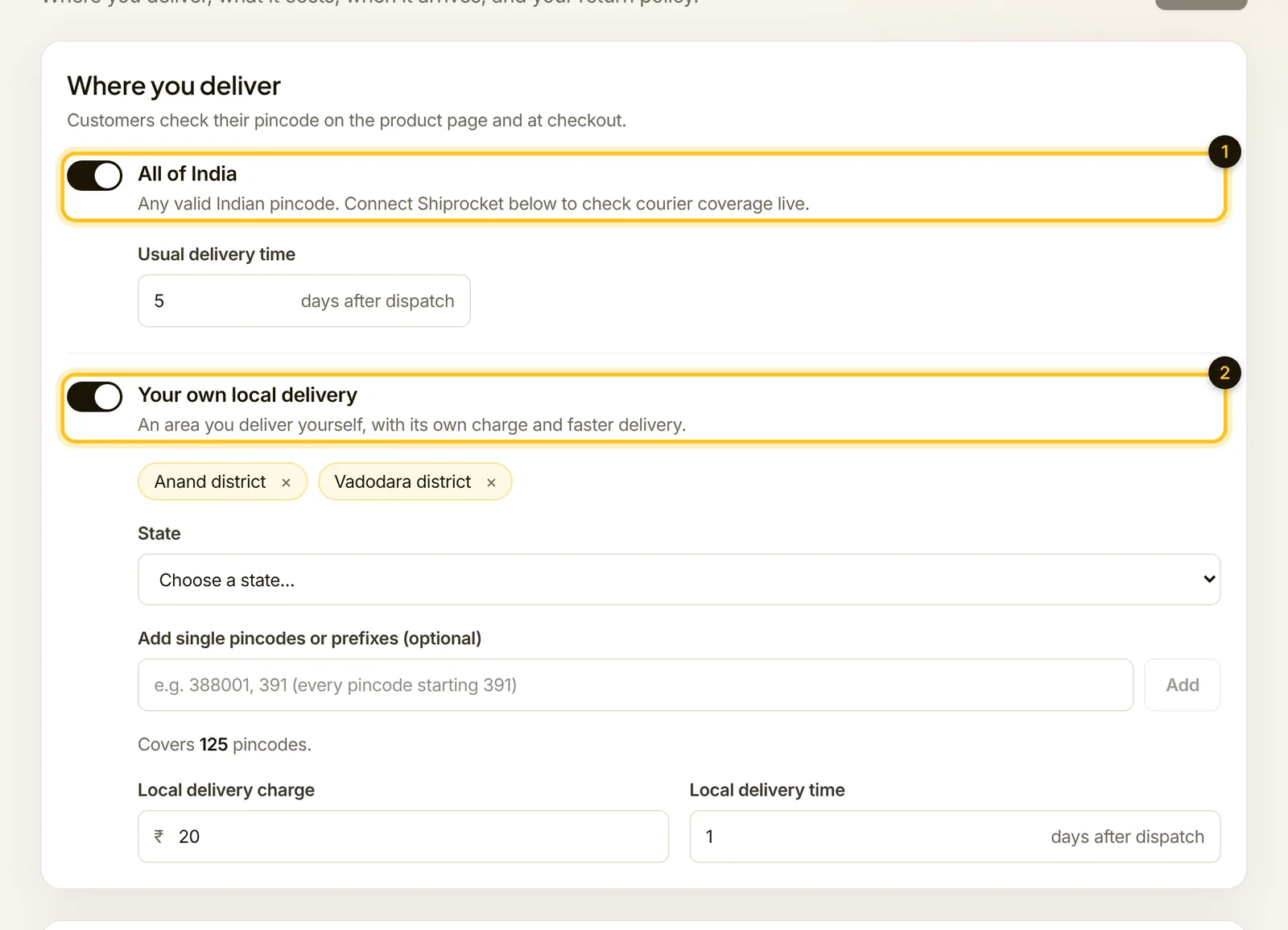
- All of India: switch on to deliver to any pincode, and set your usual delivery time in days.
- Your own local delivery: optional. Add the districts or pincodes you deliver to yourself, with their own charge and a faster time.
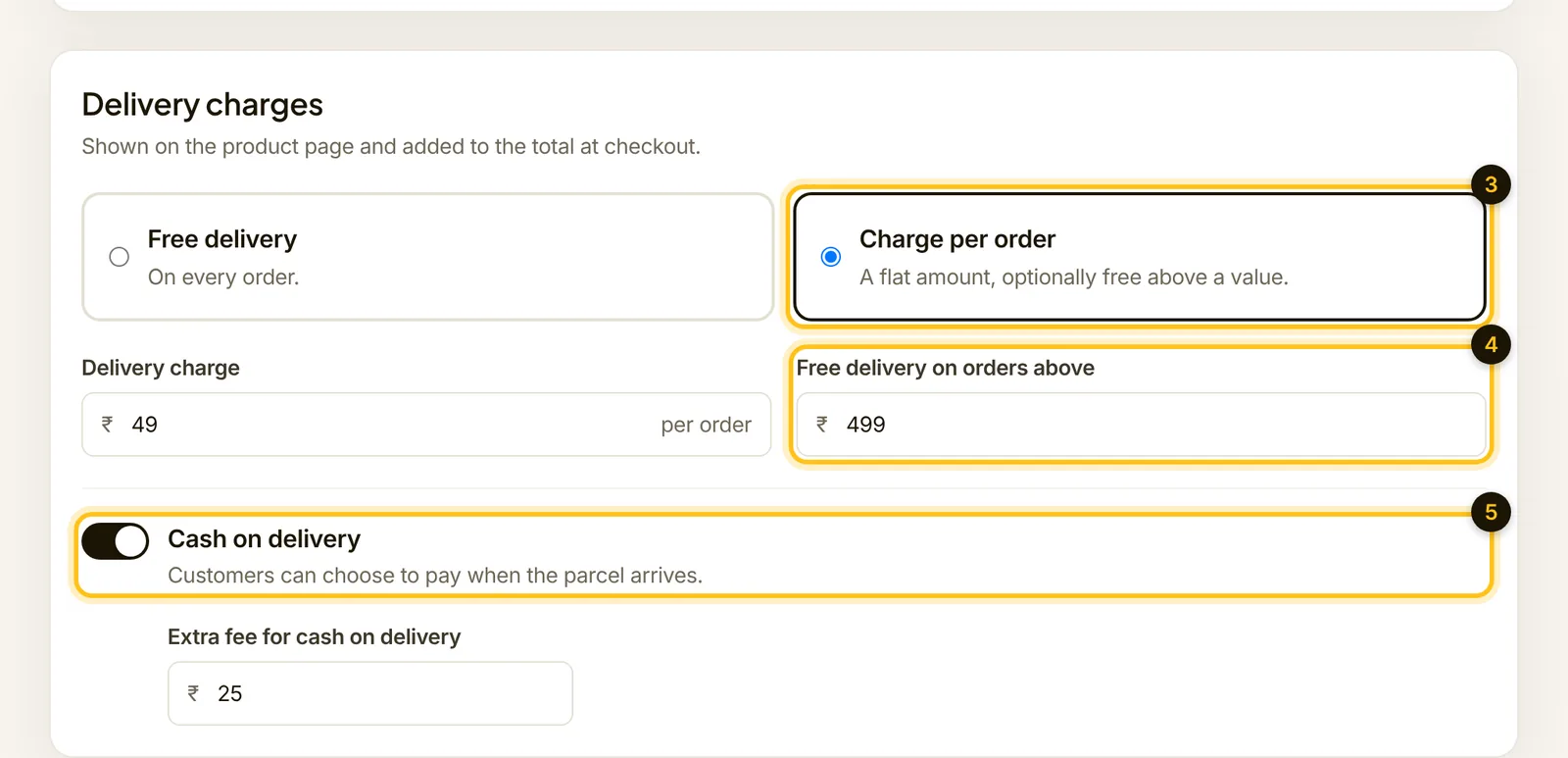
- Choose Free delivery, or Charge per order with a delivery charge.
- Optional: Free delivery on orders above an amount, a simple way to get bigger orders.
- Cash on delivery: switch on to let customers pay when the parcel arrives. You can add a small extra fee for it.
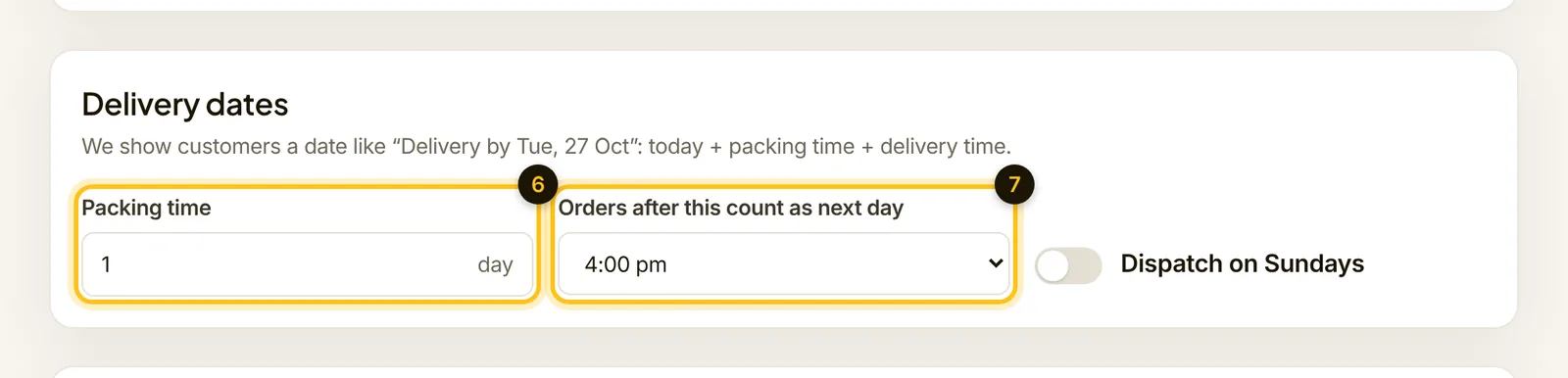
- Packing time: how many days you need before you dispatch.
- Orders after this count as next day: your daily cut-off time.
- Click Save changes at the top of the page.

- Check it in Try a pincode: type a pincode and a cart value, then click Check.
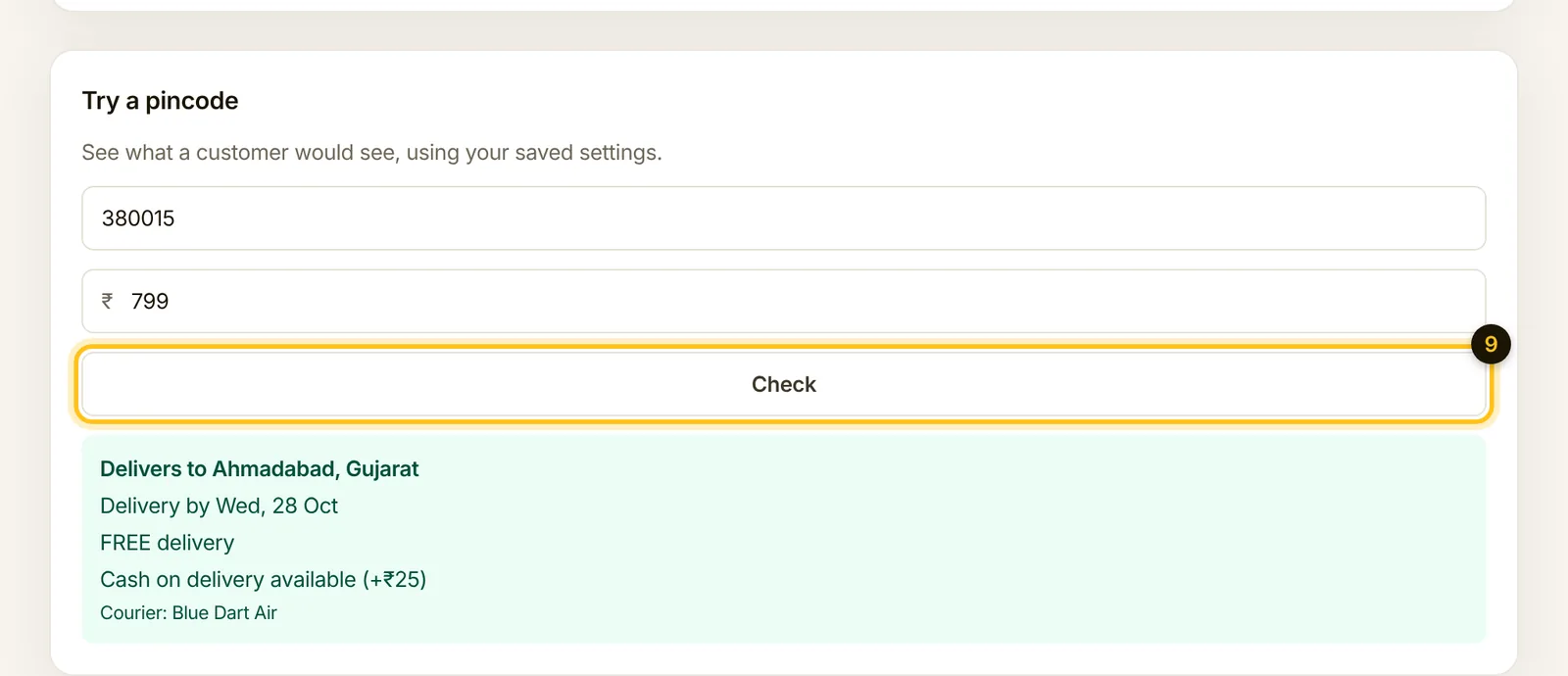
✓ Done when the pincode check shows the charge and delivery date you expect.
4. Set your returns and exchanges
On the same Delivery & Returns page, scroll to Returns & exchanges. A clear policy makes first-time customers comfortable buying from you.
- Start from a ready-made policy: 7-day easy return, 7-day exchange only or No returns.
- Adjust the Window after delivery if you want more or fewer days.
- Choose how the item comes back: We pick it up (a return pickup through Shiprocket) or Customer sends it back.
- Write your Conditions in plain words: unused, tags on, photos for damaged items.
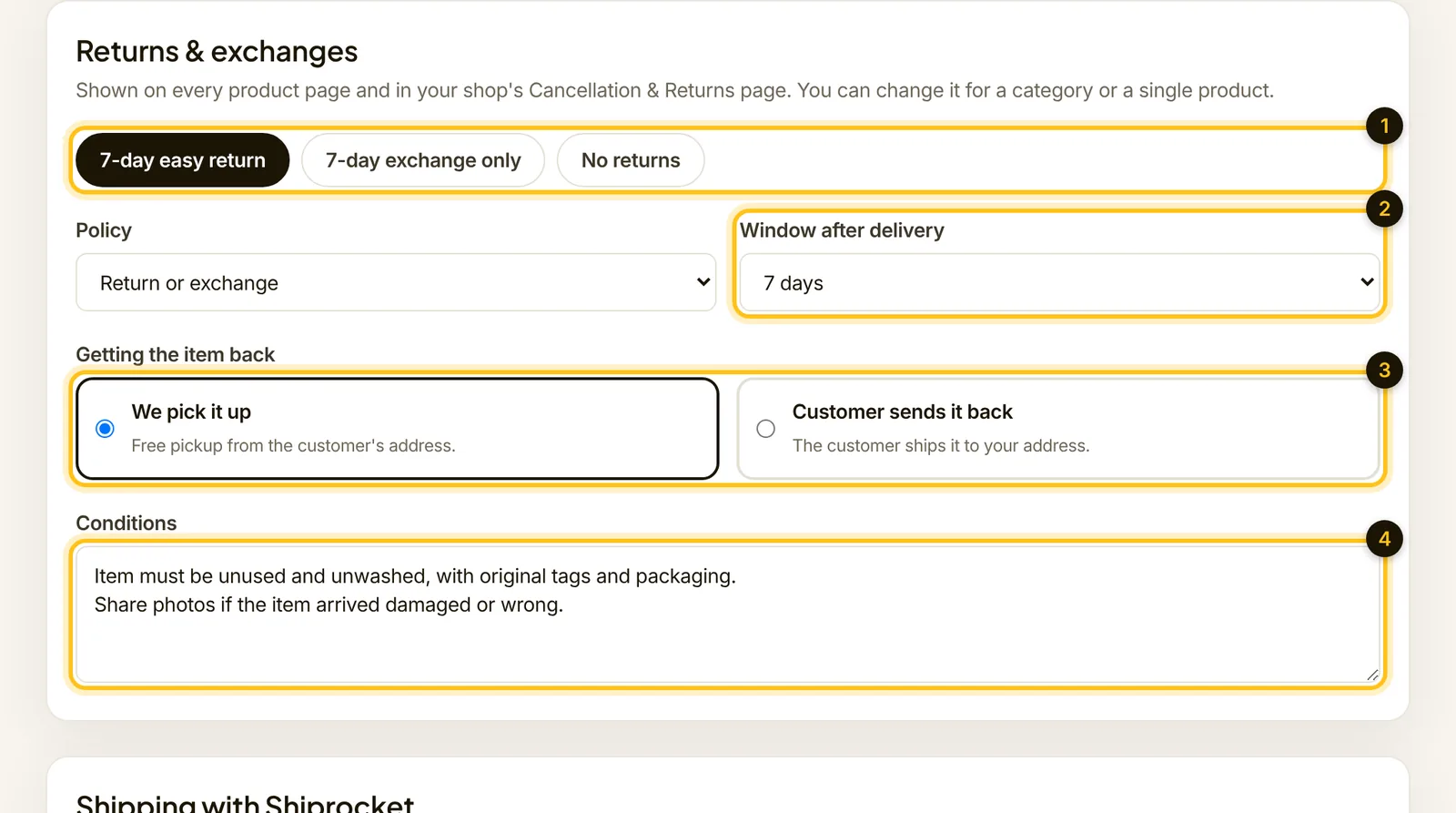
Then click Save changes. This is your shop policy. A category or a single product can have its own rule (step 4 in categories, step 11 in products); the most specific one wins.
When a customer asks to return something, it appears under Returns in the menu. Choose Approve & book pickup or Approve · customer sends it, or reject it with a note. Once the item is back, enter the refund amount and finish the return.
5. Accept, ship and deliver orders
You get an email for every new order. Open Orders in the menu to see them all.
- Accept an order you can fulfil.
- Or Reject it, for example if it's out of stock. Prepaid orders are refunded automatically.

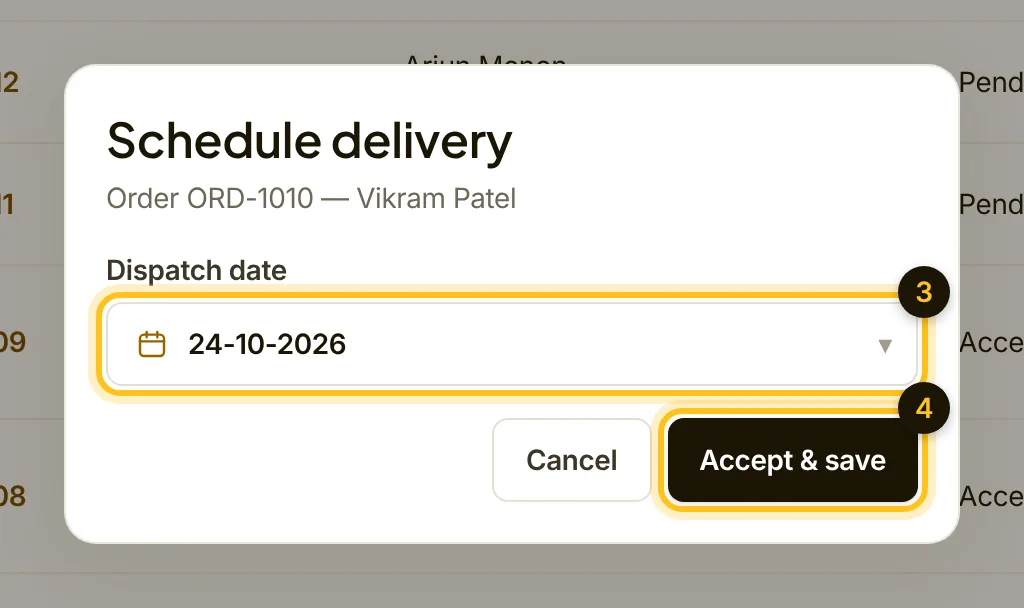
- Pick the Dispatch date, the day the parcel leaves you.
- Click Accept & save. The customer gets an email with the date.
Ship with Shiprocket
If you've connected Shiprocket, open the order and use Courier & tracking:
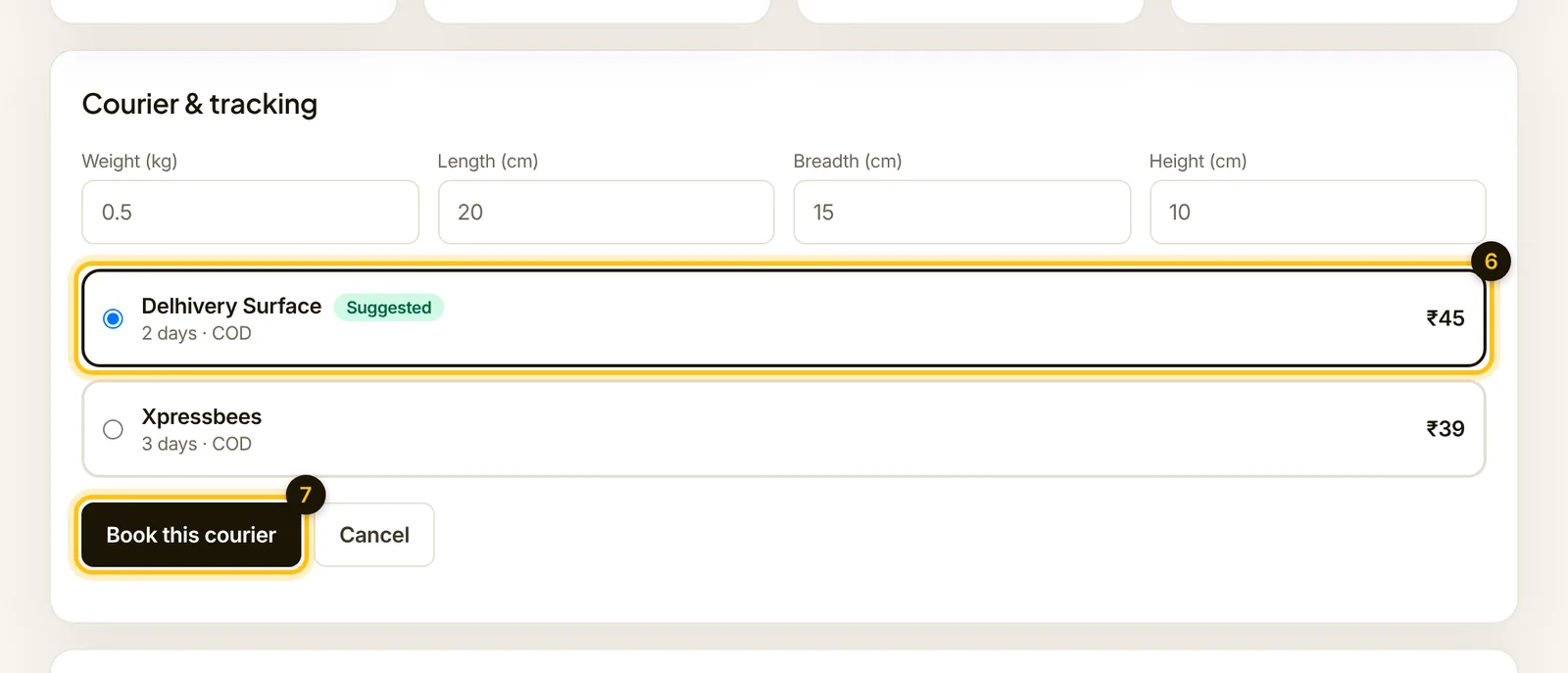
- Click Book courier.

- Pick a courier. Each shows its price and delivery days; the suggested one is preselected.
- Click Book this courier. The cost comes from your Shiprocket wallet.
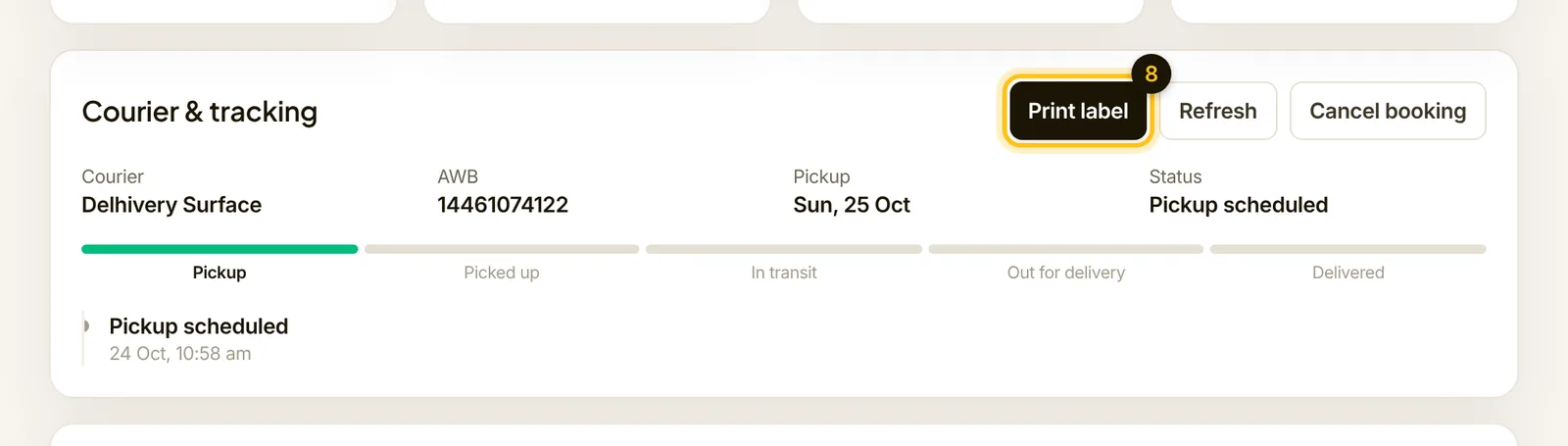
- Click Print label, stick it on the parcel and hand it to the courier at pickup. Tracking now updates by itself, and your customer can follow it.
New to Shiprocket? Follow how to set up Shiprocket first. It takes about 10 minutes.
Delivering yourself
- If you deliver the parcel yourself, or once it's been delivered, click Mark delivered.

6. Take UPI and card payments
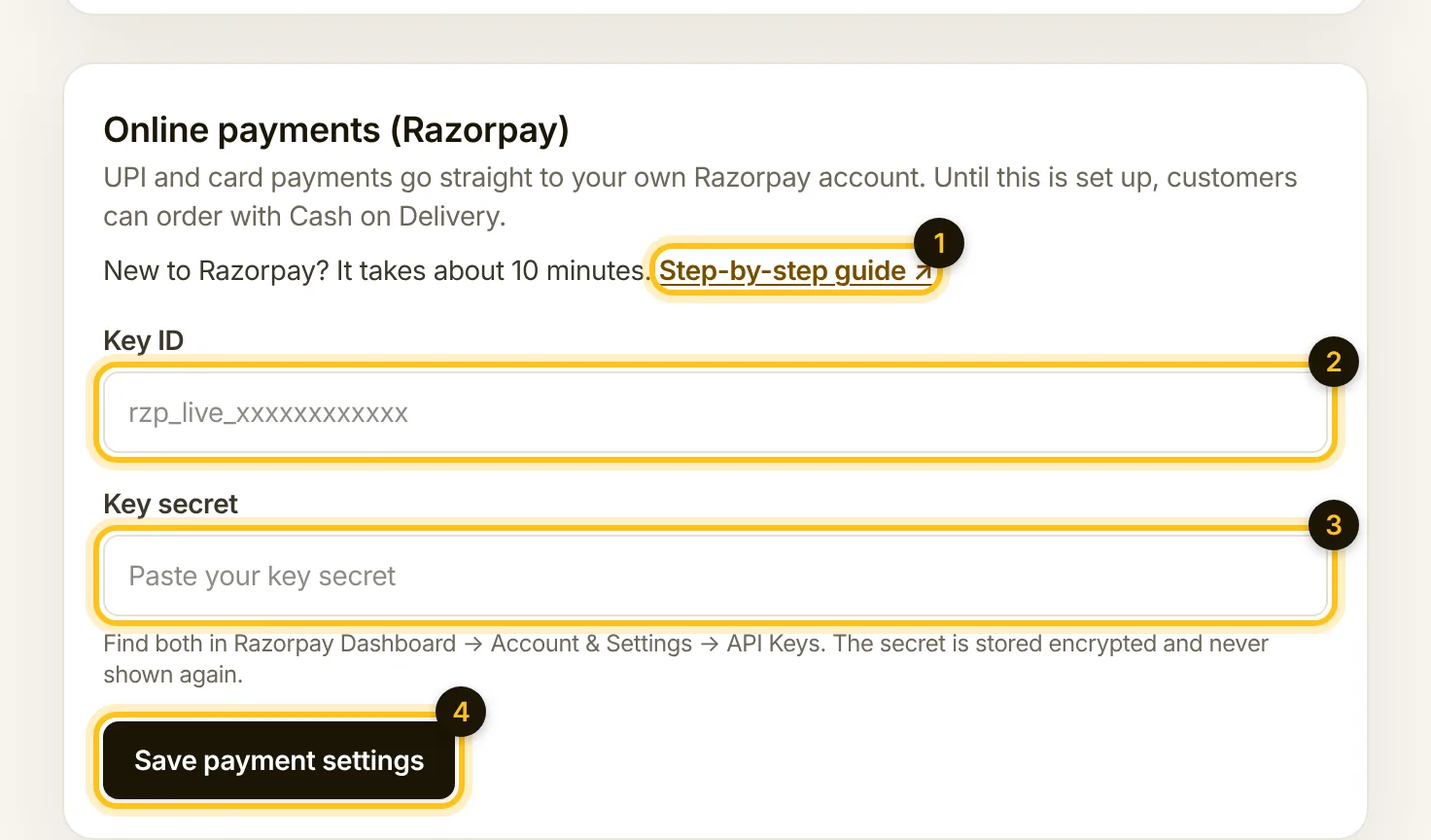
Cash on delivery works from day one. To take UPI and cards, connect your own Razorpay account in Store Settings. The money goes straight to your bank.
- New to Razorpay? Open the Step-by-step guide.
- Paste your Key ID.
- Paste your Key secret.
- Click Save payment settings.
The full walkthrough, including what to keep ready for Razorpay's KYC, is in how to set up Razorpay.
7. Store settings: logo, contact and colour
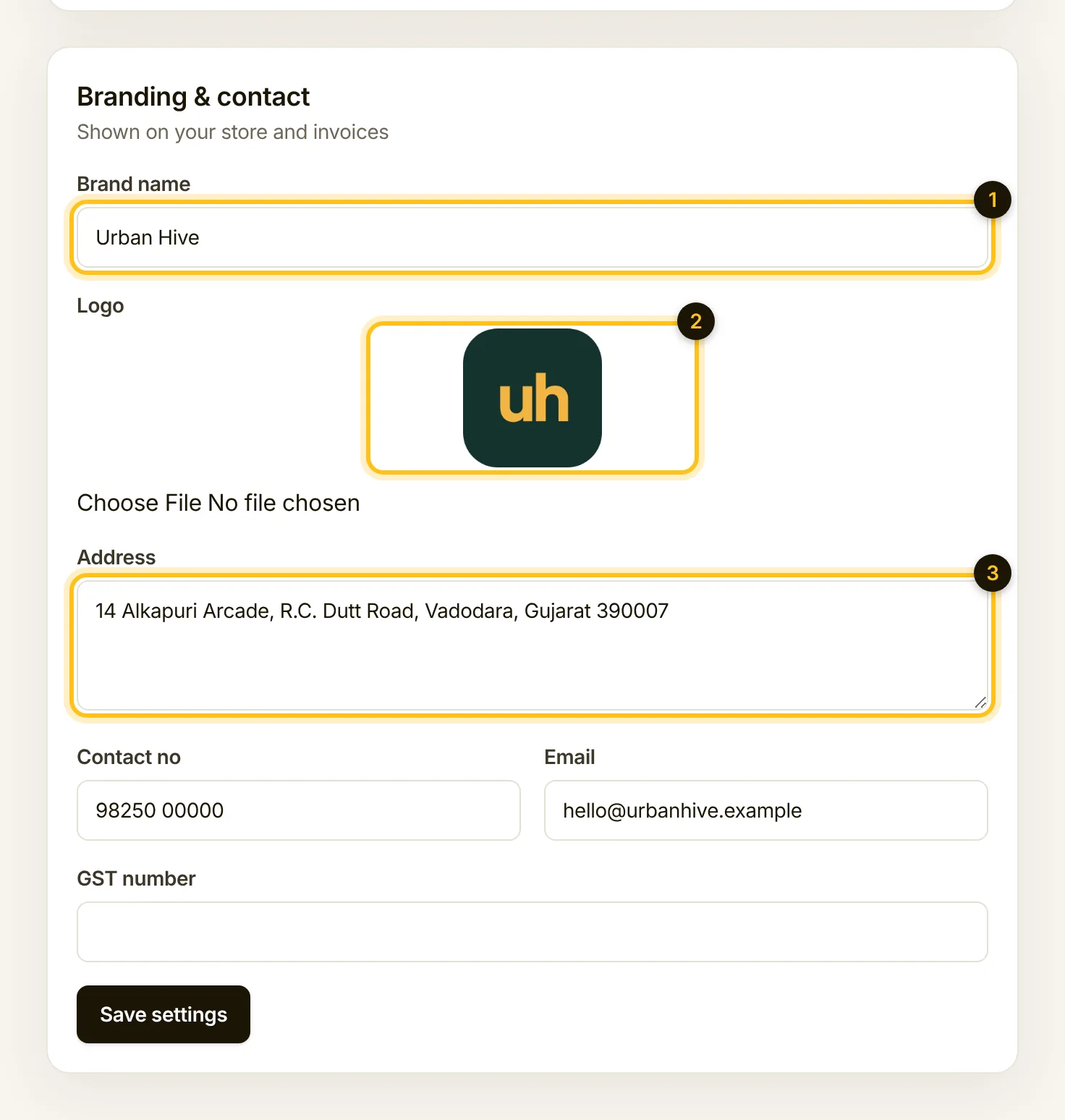
Open Store Settings. These details appear on your shop and on your invoices. Scroll down to Branding & contact:
- Brand name: your shop name as customers know it.
- Logo: a square logo looks best.
- Address, then your Contact no, Email and, if you have one, your GST number. Click Save settings.
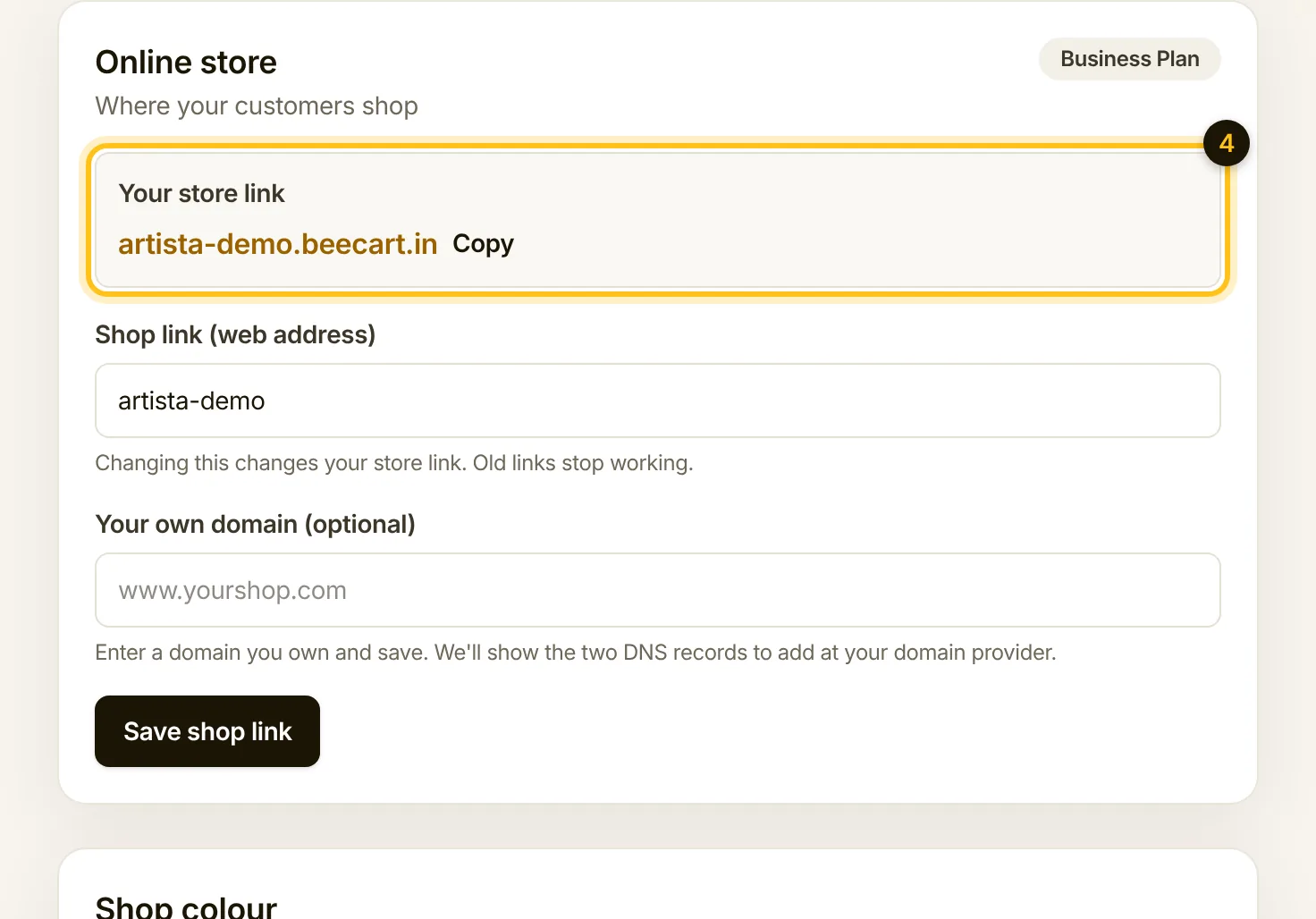
- At the top, Your store link is your shop's address. Use Copy to share it. You can change the link, or connect your own domain on the Business and Pro plans.
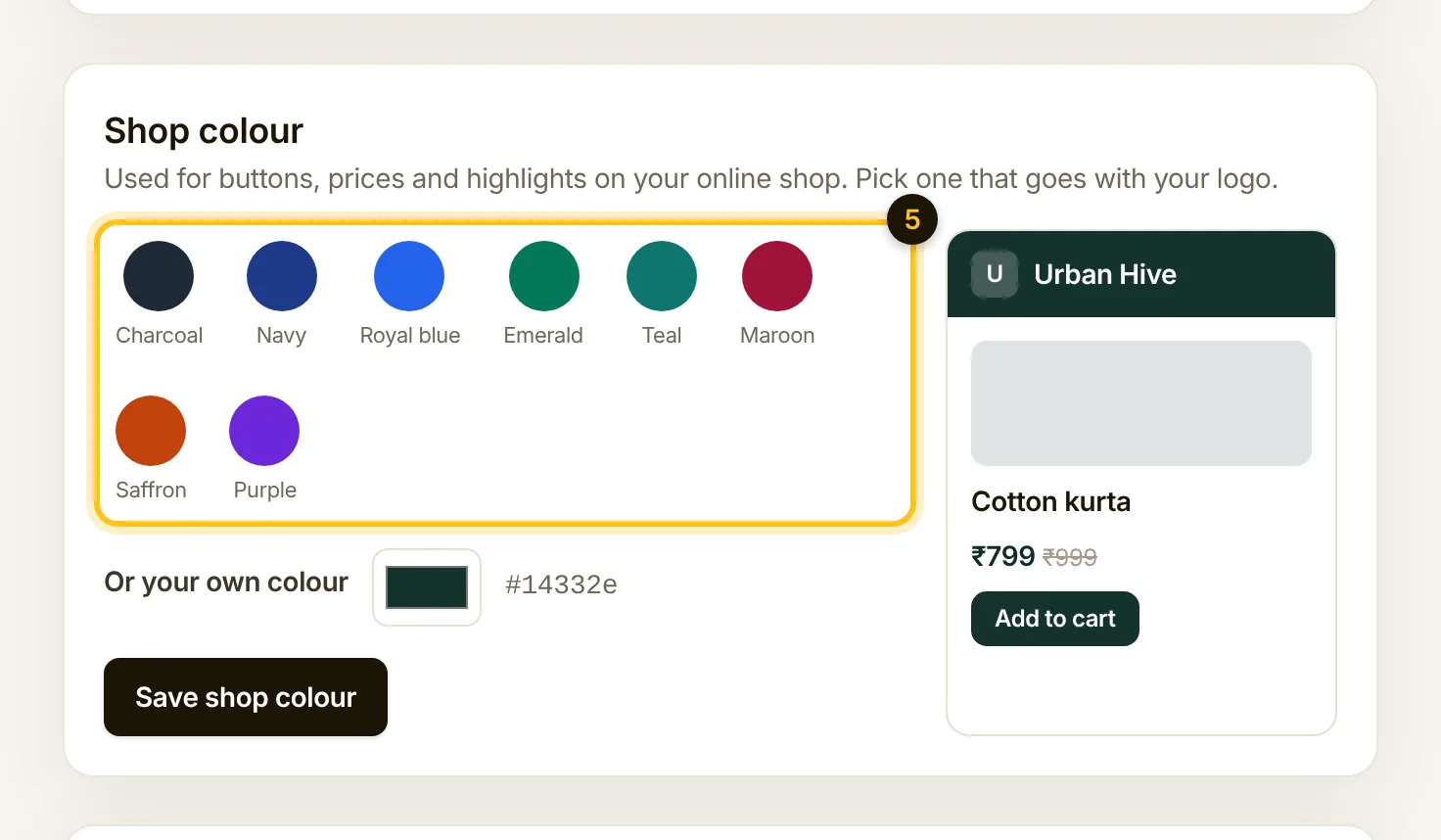
- Shop colour: pick a colour that goes with your logo. The preview shows how your buttons and prices will look. Click Save shop colour.
8. Share your shop
Your shop is ready for customers. Copy your store link and:
- Put it on your WhatsApp status and send it to your regular customers.
- Add it to your Instagram bio and stories.
- Print it on your bills, bags or a small counter card.
For more ideas, read how to sell on WhatsApp with your own shop link. Stuck anywhere? Write to us at support@beecart.in and we'll help you finish.